


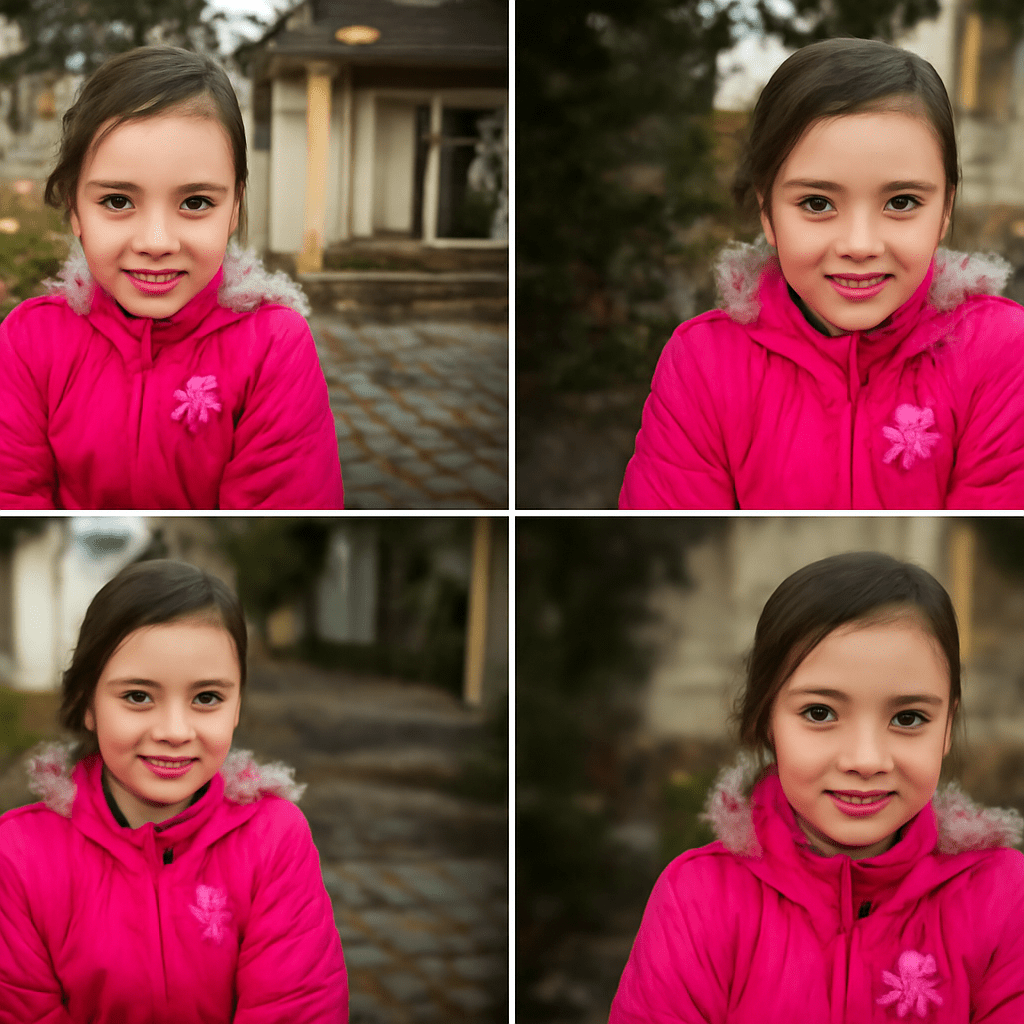
Ever found yourself admiring a photo where the subject is perfectly sharp, while the background gently fades away into a beautiful blur? This effect, known as background blur, can transform ordinary images into extraordinary ones by drawing attention to the main subject. Whether you’re using a DSLR or a smartphone, mastering how to blur the background of a picture is an essential skill in your creative toolkit.
Creating a blurred background image might seem challenging at first, but with the right tools and techniques, you can achieve this effect with ease. This article will guide you through the steps to create stunning photos with a blurred background, ensuring your pictures always stand out.
Understanding the Importance of a Blurred Background
A blurred background helps isolate the subject of your photo, making it the focal point. This technique is particularly useful in portrait photography, where the background can often be distracting. By blurring the background, the viewer’s attention is drawn directly to the subject, enhancing the overall impact of the image.
Moreover, a blurred background image adds depth and dimension to your photos. By using this technique, you can create a professional look that elevates your photography skills, regardless of your equipment.
What You Need to Get Started
To begin blurring backgrounds, you need a camera or smartphone capable of creating a shallow depth of field. DSLR cameras and many modern smartphones have settings that allow for this effect. An understanding of aperture settings, such as a lower f-stop number, is also crucial for achieving the desired blur.
Software tools can also assist in creating a blurred background. Applications like Adobe Photoshop or Lightroom provide features to manually adjust the focus and blur areas of an image. These tools are invaluable for refining your pictures and ensuring the focus remains on your subject.
Easy Steps to Blur the Background of a Picture
To start, set your camera to aperture priority mode, and select a low f-stop number to achieve a shallow depth of field. This setting allows the foreground to be in focus while the background blurs naturally.
Position your subject a good distance from the background. The further the subject is from the background, the more pronounced the blur will be.
For those using software, open your image in an editing program. Use the blur tool to manually apply a blur effect to the background, ensuring the subject remains sharp. Adjust the intensity of the blur to achieve a natural look.
Tips for Achieving the Perfect Blurred Background Image
The key to a perfect blurred background image lies in experimentation. Try different angles and distances to see how they affect the blur. Consider the lighting as well; natural light can enhance the effect significantly.
Utilize focus techniques like selective focus, where you lock the focus on the subject before taking the picture. This technique ensures that only the subject is sharp, while the surrounding elements fade into a pleasing blur.
Lastly, practice makes perfect. Spend time shooting in various environments to understand how different backgrounds and lighting conditions affect your results.
Common Mistakes to Avoid
One common mistake is over-blurring the background, which can make the photo look unnatural. Always aim for a subtle effect that enhances, rather than detracts from, your image.
Another pitfall is neglecting the relationship between your subject and the background. Ensure there’s enough distance to create a meaningful blur; otherwise, the effect may not be as pronounced or effective.
Finally, avoid relying solely on software to create a blurred background. While software is helpful, capturing the effect in-camera often yields more authentic results.
Next Steps: Now that you know how to blur the background of a picture, practice regularly. Experiment with different settings and environments to enhance your skills. As you become more proficient, you’ll find new ways to creatively use blurred backgrounds in your photography. Keep refining your technique, and soon your images will captivate any audience with their professional look.