


A DVD movie can be split across several files inside a folder named VIDEO_TS. If you have received that folder as source material for a creative project, knowing how to play the VOB files helps you inspect the footage before you begin editing.
You can open these VOB files with a compatible media player on Windows or macOS. The approach depends on what you have: a single video file for a quick preview, or a complete DVD folder whose menus and chapters you want to navigate.
What is a VOB file?
What is a VOB file? It is a container used by DVD-Video. It can hold video, audio, subtitles, and other information together. The video is commonly encoded as MPEG-2, while a disc can include several audio and subtitle tracks. The VOB extension identifies the container; it does not tell you everything about the streams inside it.
A DVD folder often includes VOB files alongside IFO and BUP files. IFO files describe navigation, such as titles and chapters; BUP files are backups of that information. A long program may span several numbered VOB files, while other files can contain menu footage or extras. Keep the original folder together when you want to preserve the DVD’s structure.
How to open VOB files on Windows
To learn how to open VOB files for a straightforward preview, use VLC media player, a free player available for Windows and macOS. Download it from VideoLAN, install it, and launch it. If you are deciding how to play a VOB file, starting with VLC avoids depending on whether the default Windows player supports the streams in that particular file.
- In VLC, choose Media > Open File.
- Browse to the file ending in
.VOB, select it, and choose Open. - Use the playback controls to pause, seek, and adjust volume. Under Audio > Audio Track, choose another track if the first one is silent or contains the wrong language.
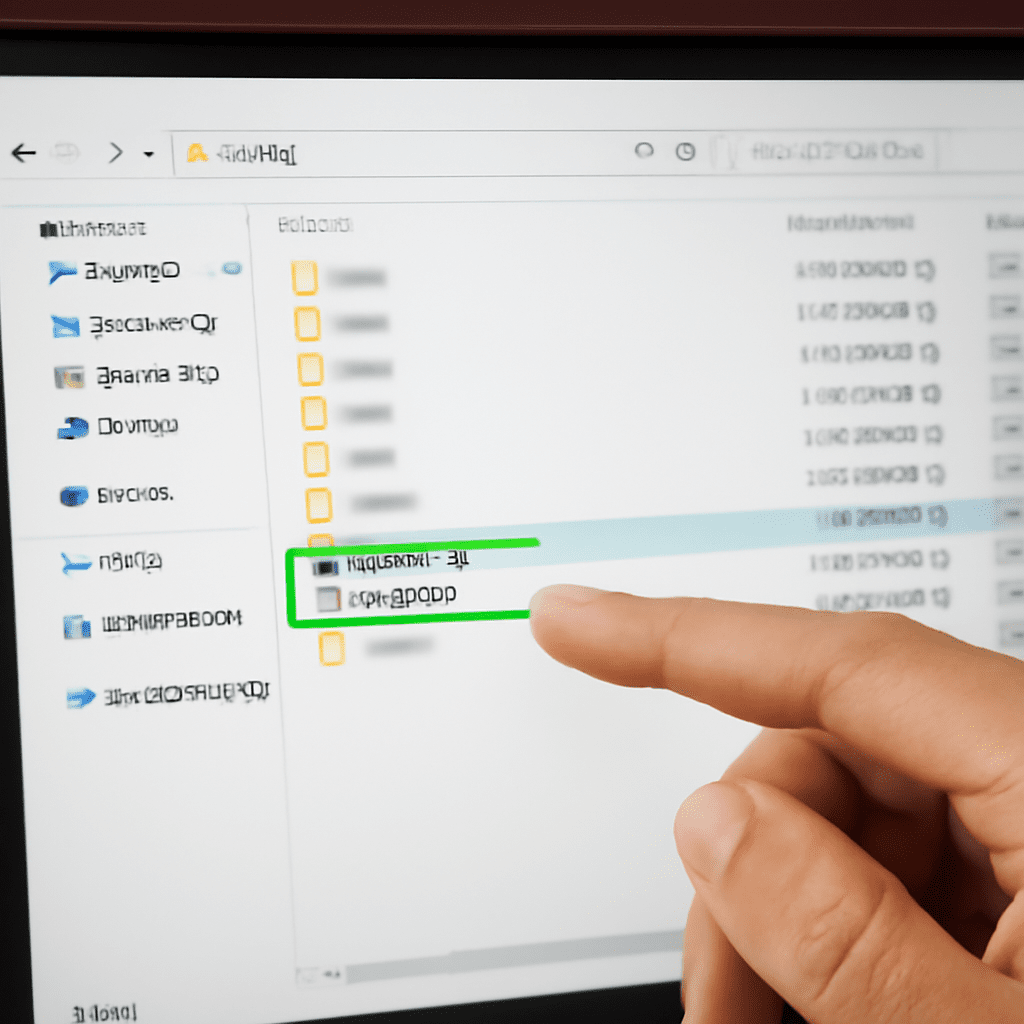
You can also drag the file into the VLC window. To make VLC your regular choice, right-click the file in File Explorer, choose Open with, and select VLC. Windows may offer an option to use the selected app for files of that type. Try one file first before changing the default.
If you are wondering how to play .VOB files from a full disc folder, keep the folder intact and open it as DVD media in VLC using Media > Open Disc and the DVD selection. Browse to the DVD folder and start playback. Menu behavior can vary with the source; if the folder does not open as expected, try the individual files to inspect the footage.
Open a file or DVD folder on a Mac
To see how to play VOB files on a Mac, install and open VLC, choose File > Open File, and select the .VOB file. You can also drag it onto the VLC window. This is a practical answer to how to open .VOB files when you only need to see the contents of one clip.
For a complete DVD movie folder, macOS also has DVD Player. Open it using Spotlight, then choose File > Open DVD Media. Select the VIDEO_TS folder and click Open. The folder needs its DVD navigation files as well as the video files for the disc structure to work. Apple’s instructions describe this folder workflow and note that copied folders from copy-protected DVDs cannot be played this way.
Once the movie opens, use the on-screen controls and DVD menus to choose a title or chapter. If you only have a loose VOB, open it in VLC instead; a standalone file may begin partway through the program and may not offer a working menu.
Choose the right preview for your project
Suppose you are reviewing an old event recording before selecting footage for a short visual piece. Start by playing VOB files individually to identify the scenes. Pause on a frame to inspect composition and look for problems such as interlacing, soft detail, or a picture that appears stretched. Listen for background noise and note the time of a promising passage.
Then open the complete DVD folder, if available, to check the sequence in context. The menu may reveal separate titles or chapters that are difficult to identify from filenames alone. A title can be divided across multiple files, so check the next numbered file when a scene ends abruptly. Write down the title and approximate time as well as the filename; that gives you a clearer reference when you return to the source.
A player is for inspection. Your editing application may need the material in another supported format before it can import it. Keep an untouched copy of the source and work from a separate copy or an appropriate conversion. Renaming .VOB to another extension does not convert the video or audio inside.
When picture or sound is missing
If playback opens to a black screen, first move the playhead forward: you may have opened a short menu segment or a portion that begins with black frames. Try another VOB in the same folder. If several files fail, reopen the complete DVD folder or try the original source; an incomplete copy or damaged file can prevent playback.
If you see video but hear nothing, check the player’s volume and mute control, then check the computer’s selected audio output. Choose another audio track in the player: a DVD can include more than one, and the selected track may be silent or in a different language. Test your speakers or headphones with another video to separate a system audio problem from a file problem.
If the picture is distorted or playback stutters, copy accessible media to a local drive and try again, then update the player from its official source. A persistent failure in the same spot across players can point to damaged or incomplete media. Compare it with the original copy if one is available.
The clearest sign that you opened only part of a movie is an abrupt beginning or ending where you expected a continuous scene. Check the neighboring numbered files, or reopen the complete VIDEO_TS folder to follow the DVD’s own navigation.