

Fit a wide photograph into a square frame by choosing what happens at its edges. You can crop the sides, add space above and below, or stretch the picture to fill the square. Each choice changes the result. Knowing how to adjust a picture’s proportions helps you keep the details that matter.
The same image can serve several layouts, but each frame asks for a decision. To reshape an image for a new aspect ratio, start with the destination’s required dimensions and then choose whether to remove, surround, or distort pixels. An online editor can handle the work; the creative choice remains yours.
Change Image Aspect Ratio: Choose the Result
Aspect ratio describes width relative to height. A 3:2 image is three units wide for every two units high. It could measure 1,200 by 800 pixels or 3,000 by 2,000 pixels: the pixel counts differ, but the shape is the same.
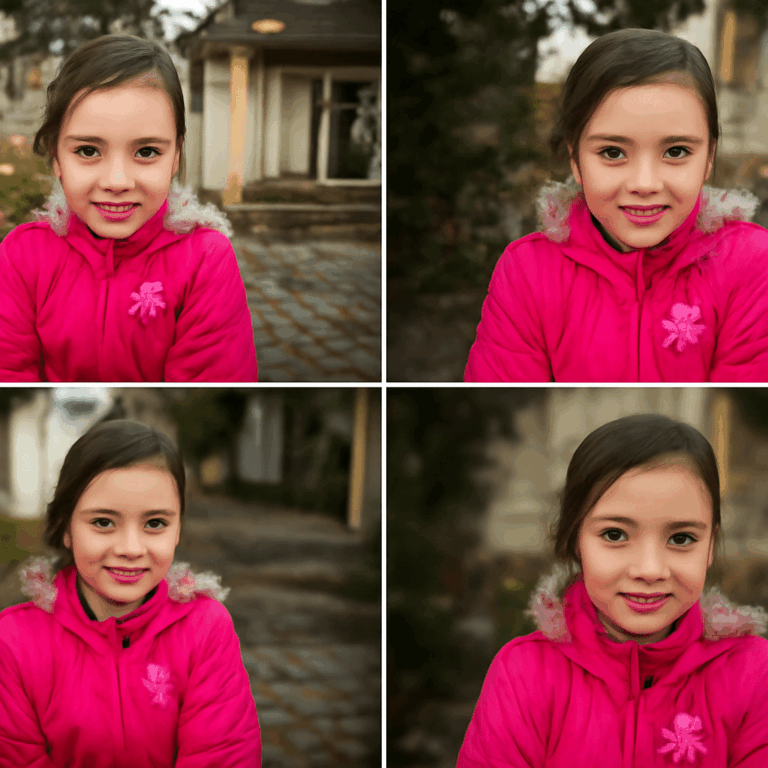
Imagine a 1,200-by-800 landscape photograph that needs to become a 1,000-by-1,000 square. Three methods lead to that shape:
- Crop: Keep an 800-by-800 square from the original and remove the rest of the sides. Then resize the retained square to 1,000 by 1,000.
- Add padding: Fit the entire photo within the square. At 1,000 pixels wide it becomes about 667 pixels high, leaving about 333 pixels of extra height to divide above and below.
- Stretch: Set the width and height independently to 1,000 pixels. The whole picture fills the square, but its subjects become taller relative to their width.
In a portrait, cropping can remove a hand, padding keeps it, and stretching changes its shape.
Set Up the Canvas
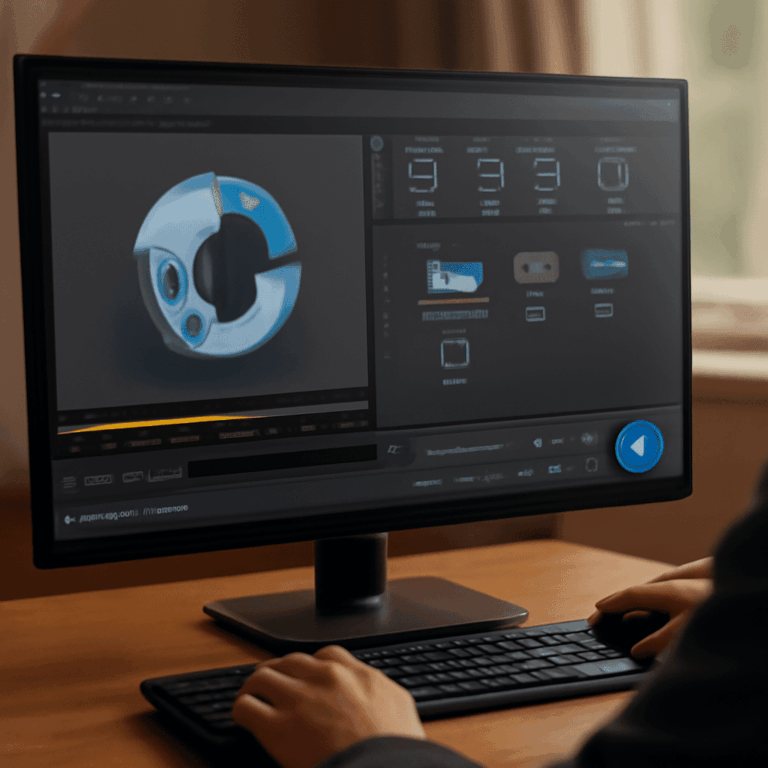
To change aspect ratio of an image online, open an editor that offers a crop tool, a way to set canvas dimensions, and export controls. Upload the original image. If the editor offers a project or duplicate option, keep a copy of the original so the framing can be revised later.
Enter the destination width and height in pixels, or select the matching ratio if the editor offers it. Use exact destination dimensions for the final canvas.
The canvas is the rectangular area that will be exported. Setting it to a new shape does not decide how the photograph fits inside it. When changing a picture’s proportions in a browser, preview whether it fills the frame or fits whole. Labels differ between editors, so judge the visible edges as well as the option’s name.
Crop to Fill the Frame
To adjust an image’s aspect ratio online, crop when it must fill the frame and its edges can be sacrificed. Set the crop box to the target ratio. Move it over the photograph until the subject, important text, and other necessary details sit inside.
For the 3:2 example, a centered square removes equal portions from the left and right. Moving the box toward one side preserves more of that side and removes more from the other. Check hands, faces, and objects near the edges before applying the crop. The frame is a window: moving it changes what the viewer can see.
After cropping, resize the retained image to the requested pixel dimensions if needed. Increasing an 800-by-800 crop to 1,000 by 1,000 adds pixels through resampling, so inspect fine detail at the final size. It cannot recover detail that was absent in the original.
Add Space Around the Image
Choose padding when the whole photograph must remain visible. Set a square canvas, scale the image proportionally until it fits within the boundaries, and position it. In the example, the unused space falls above and below the wide photograph.
Fill that space with a solid color, transparency if the format and destination support it, or another intentional background. Centering gives equal borders; shifting the photo can create room for a caption. Keep the image’s width and height linked while scaling so the photograph retains its shape.
This approach is useful for artwork with signatures or product images with details close to an edge. The tradeoff is that the photograph occupies less of the final square. Preview it at the size at which viewers will actually see it.
Stretch Only When Distortion Is Intended
To change image aspect ratio by stretching, unlock the width and height controls and enter the new dimensions independently. The editor will reshape the content to fill them. Circles become ovals and faces may look unnaturally narrow or tall.
That effect can serve an abstract design or a texture, where altered proportions are part of the composition. For a photograph of a person or a product, compare the result with the original before accepting it. If shape matters, return to a proportional fit and use a crop or padding instead.
Export and Check the Result
Choose the file format required by the destination. JPEG is common for photographs; PNG can preserve transparency when the background needs it. Export a copy, then reopen it and check the pixel dimensions, visible edges, and any text. When adjusting an image’s proportions online, preview the exported file at its intended display size as well as at full size.
The most likely mistake is an unintended stretch: a circle looks oval or a face looks subtly wrong. Return to the editor, relink width and height, and fit the original proportionally. Then crop the excess or add space around it before exporting again.