

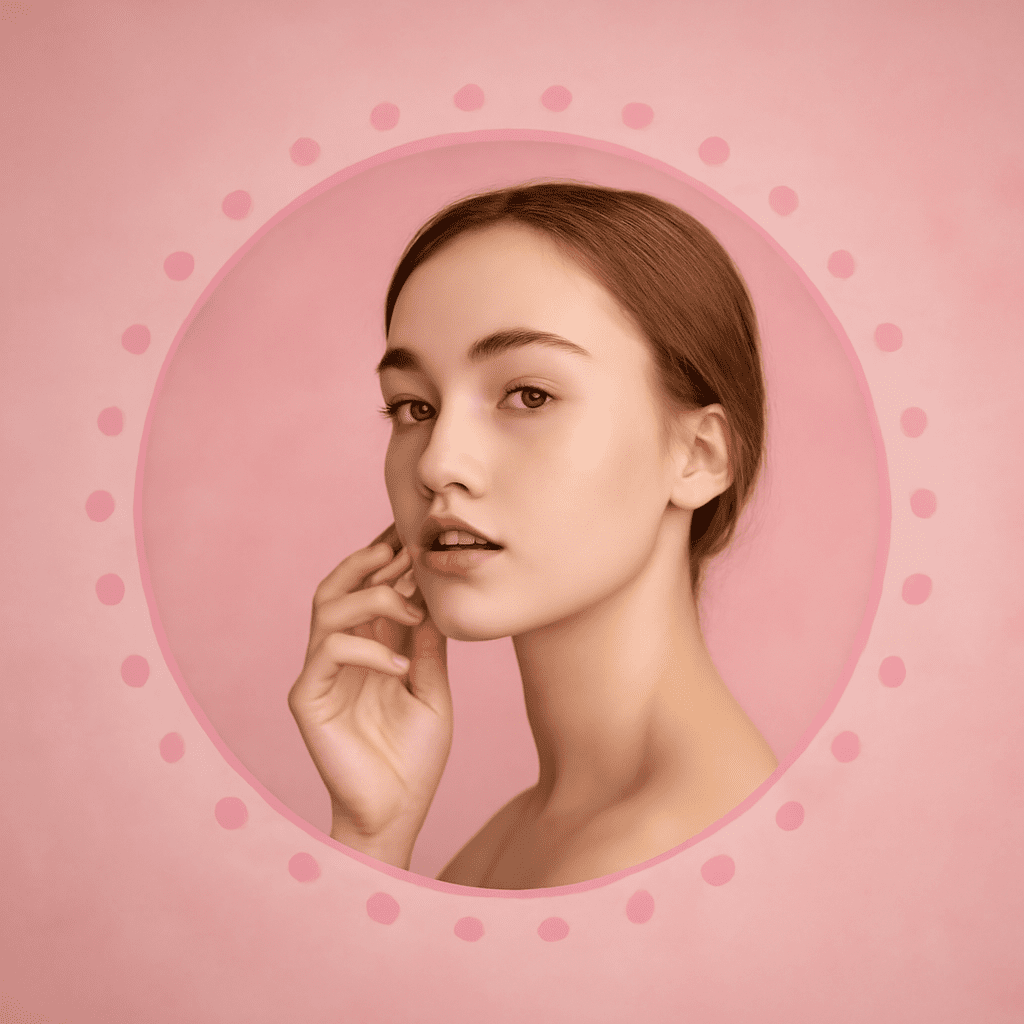
Have you ever needed to create a circular crop from your photos but felt overwhelmed by the process? You’re not alone. Many people struggle with editing images into perfect circles, either because they lack the right tools or aren’t sure where to start. In this guide, you’ll learn how to crop a picture into a circle effortlessly using various circular crop techniques. By the end, you’ll be able to crop an image to circle seamlessly, giving your photos a unique and polished look.
Why Crop an Image into a Circle?
Benefits of Circular Crop
Cropping an image into a circle offers several visual and practical benefits. First, it allows you to focus attention on the central subject without distractions from the corners and edges. This technique can enhance the visual appeal of profile pictures, logos, and design elements. Circular crops are also useful in creating harmony and balance within a composition where rectangular images may look out of place.
Popular Uses for Circular Images
Circular images are widely used across various platforms and applications. You often see them in profile pictures on social media, which provides a more personal and intimate feel. Circular crops are also common in design projects, from brochures to websites, where they serve to break the monotony of square and rectangular shapes. They’re perfect for logos, creating a distinctive and memorable brand identity.
Tools You Need for Circular Cropping
Online Tools for Circular Crop
There are numerous online tools available to help you crop images into circles quickly and efficiently. Websites like Canva, Fotor, and Pixlr offer user-friendly interfaces that allow you to upload your image and apply a circular crop with just a few clicks. These platforms often provide additional features like filters and design templates to enhance your edited images.
Software Options for Cropping Images to Circle
If you prefer offline tools, software like Adobe Photoshop and GIMP provides robust options for cropping images to circles. These programs offer more control and precision in editing, allowing you to adjust the size and position of the crop as needed. While they may have a steeper learning curve, the end result is often a higher-quality image tailored to your specific needs.
Easy Steps to Crop Image Into Circle
Step-by-Step Guide to Crop Image to Circle
To start, choose your preferred tool for cropping. If using Photoshop, open your image and select the Elliptical Marquee Tool. Drag it across the area of the image you want to keep, forming a circular selection. Then, go to Image > Crop to finalize the circular crop. For online tools, simply upload your image, choose the circular crop option, and adjust as necessary before saving.
Tips for Perfect Circular Crop
Ensuring your circular crop is perfect involves a few key considerations. First, align the most important part of the image centrally within the circle. This ensures that your audience’s attention is drawn to the right spot. Additionally, be mindful of the resolution; cropping without maintaining quality can lead to pixelation. Finally, experiment with different sizes and positions to see what best highlights your image’s strengths.
Common Mistakes in Circular Cropping and How to Avoid Them
Avoiding Unwanted Background
A common issue when cropping images to a circle is including too much background, which can detract from the subject. To avoid this, make sure your selection tool is positioned precisely over the area you wish to keep. Zooming in on the image can help with accuracy, allowing you to see more detail and make precise adjustments.
Maintaining Image Quality
Maintaining image quality is crucial when performing a circular crop. Enlarging an image after cropping can reduce its clarity, so it’s important to start with a high-resolution image. Use tools that support non-destructive editing, which allows you to revert changes if necessary, preserving the original quality.
Frequently Asked Questions About Circular Crop
Can I Crop Any Image to a Circle?
Most images can be cropped into a circle, but the result largely depends on the original composition and resolution. Images with centered subjects and high resolution tend to work best. Ensure that the subject fits well within a circular frame without losing key elements by adjusting the crop size accordingly.
What Are the Best Formats for Circular Images?
The ideal formats for circular images are PNG and SVG. PNG is preferred for web use due to its ability to handle transparency, allowing the image to blend seamlessly with various backgrounds. SVG is excellent for vector-based designs, offering scalability without quality loss, making it ideal for logos and icons.
Bottom line: Cropping images into circles can transform your visuals from ordinary to engaging. By using the right tools and techniques, you can achieve a flawless circular crop that enhances the aesthetic of your projects. Remember to focus on quality and composition for the best results.