
Have you ever wanted to convert an image to grayscale but found the process daunting? You’re not alone. Many people struggle with finding the right tools and techniques to effectively convert color images to grayscale. Fortunately, with the right guidance, this task can be as simple as clicking a few buttons. This article will serve as your ultimate guide on how to convert image to grayscale, ensuring high-quality results every time.
Imagine the freedom of effortlessly transforming your colorful photos into timeless black-and-white images. By understanding the nuances of grayscale conversion and selecting the best tools, you can achieve stunning results that enhance the emotional impact of your images. Let’s delve into the world of grayscale conversion and learn how to make the process seamless and straightforward.
Understanding Grayscale Conversion
What is Grayscale?
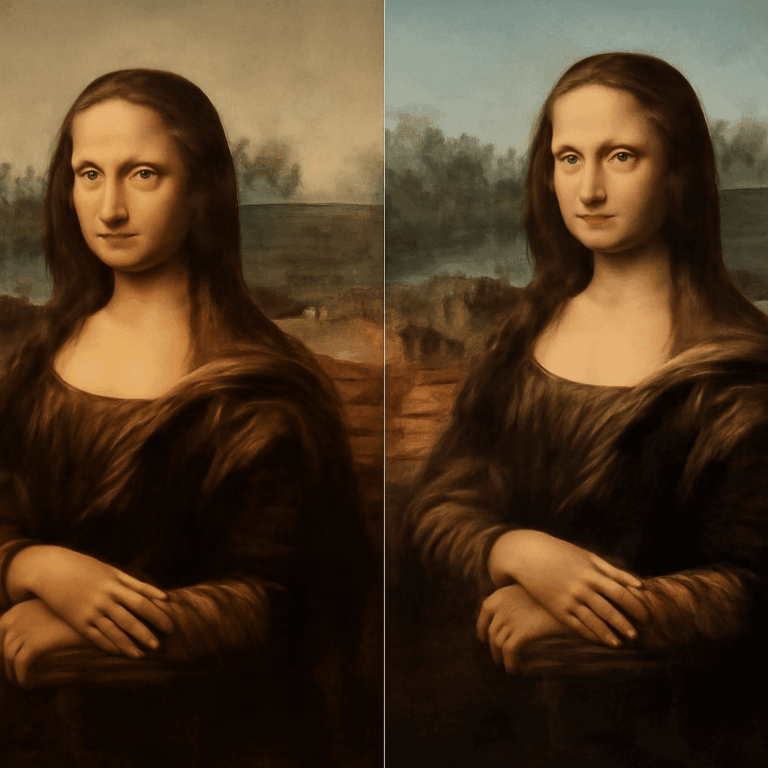
Grayscale is an image composed exclusively of shades of gray, varying from black at the weakest intensity to white at the strongest. When you convert an image to grayscale, you remove the color information, capturing only the luminance. This transformation strips away distractions, allowing you to focus on the subject’s texture, contrast, and composition. By converting color images to grayscale, you provide a universal appeal and classic elegance to your photographs.
Benefits of Converting to Grayscale
There are numerous advantages to transforming your images into grayscale. First, it simplifies the image data, reducing file size, which makes storage and sharing easier. Additionally, a grayscale image often reveals details that color images may obscure, enhancing your image’s storytelling power. For those in photography and design, grayscale conversion offers a chance to experiment with lighting and shadow without the complications of color balance.
How to Convert Image to Grayscale
Using Online Tools
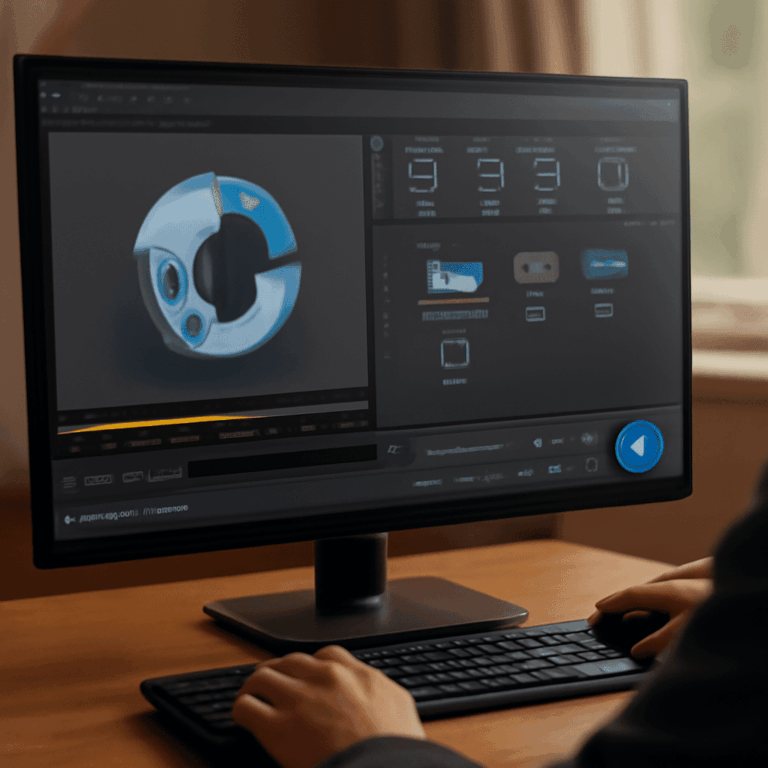
Online tools provide a quick and convenient method to convert image to grayscale. These platforms require no software installation, making them accessible from any device with internet connectivity. Simply upload your photo, choose the grayscale option, and your image is instantly transformed. Tools like Canva and LunaPic are popular choices for their user-friendly interfaces and robust features.
Using Software Applications
For more control and precision, software applications like Adobe Photoshop and GIMP offer advanced options for converting images to grayscale. These applications allow you to adjust contrast, brightness, and specific channel mixes to achieve the desired grayscale effect. By converting images to grayscale using these programs, you can manipulate more image attributes and produce professional-quality results.
Tips for Best Results
To ensure the best outcome when converting an image to grayscale, pay attention to the image’s contrast and exposure before beginning the conversion. Adjust the brightness and contrast settings to avoid flat-looking images. Additionally, using the desaturate option or a black-and-white adjustment layer can provide greater control over the final grayscale image.
Tips for Choosing the Right Grayscale Converter
When selecting a grayscale converter, consider factors such as ease of use, feature set, and output quality. A user-friendly interface can simplify the process, while a comprehensive feature set can offer more control over the final result. Furthermore, ensure the tool you choose maintains image quality and supports high-resolution outputs to preserve the details and clarity of your images.
Common Challenges and How to Overcome Them
Maintaining Image Quality
One of the most common issues when converting images to grayscale is quality loss. To maintain image quality, select tools that support high-resolution processing and offer options for lossless conversion. Be cautious with compression settings, as they can degrade the image’s fine details and sharpness.
Dealing with Large Files
Handling large files during grayscale conversion can be challenging, especially with online tools. To address this, opt for converters that allow batch processing, reducing the time spent on individual conversions. Additionally, choosing applications that optimize file size without sacrificing image quality can alleviate storage and upload constraints.
Frequently Asked Questions about Grayscale Conversion
Can I convert any image to grayscale?
Yes, most images can be converted to grayscale using the right tools. However, images with high contrast and distinct textures tend to yield the best results.
Will converting to grayscale reduce the image’s file size?
Generally, yes. Removing color information typically reduces file size, but this depends on the file format and compression settings used during conversion.
Are there any limitations to using online tools?
While online tools are convenient, they may struggle with large files or lack advanced editing features found in software applications.
Key takeaways: Converting images to grayscale can enhance their artistic appeal and simplify their data structure. By choosing the right tools and paying attention to image quality, you can achieve professional results with ease. Grayscale conversion empowers you to transform your photos into timeless pieces of art.