


A recording can start with several seconds of handling noise and end long after the speaker has finished. An editor for sound lets you remove those distractions, make small improvements, and save a clean copy. Open an audio editing tool, listen before cutting, and check the exported file from beginning to end.
The same process works for a voice memo, interview excerpt, or short effect. Keep the original untouched so you can return to it if a cut removes a word or an effect changes the sound too much.
Audio Editer: Open and Inspect Your File
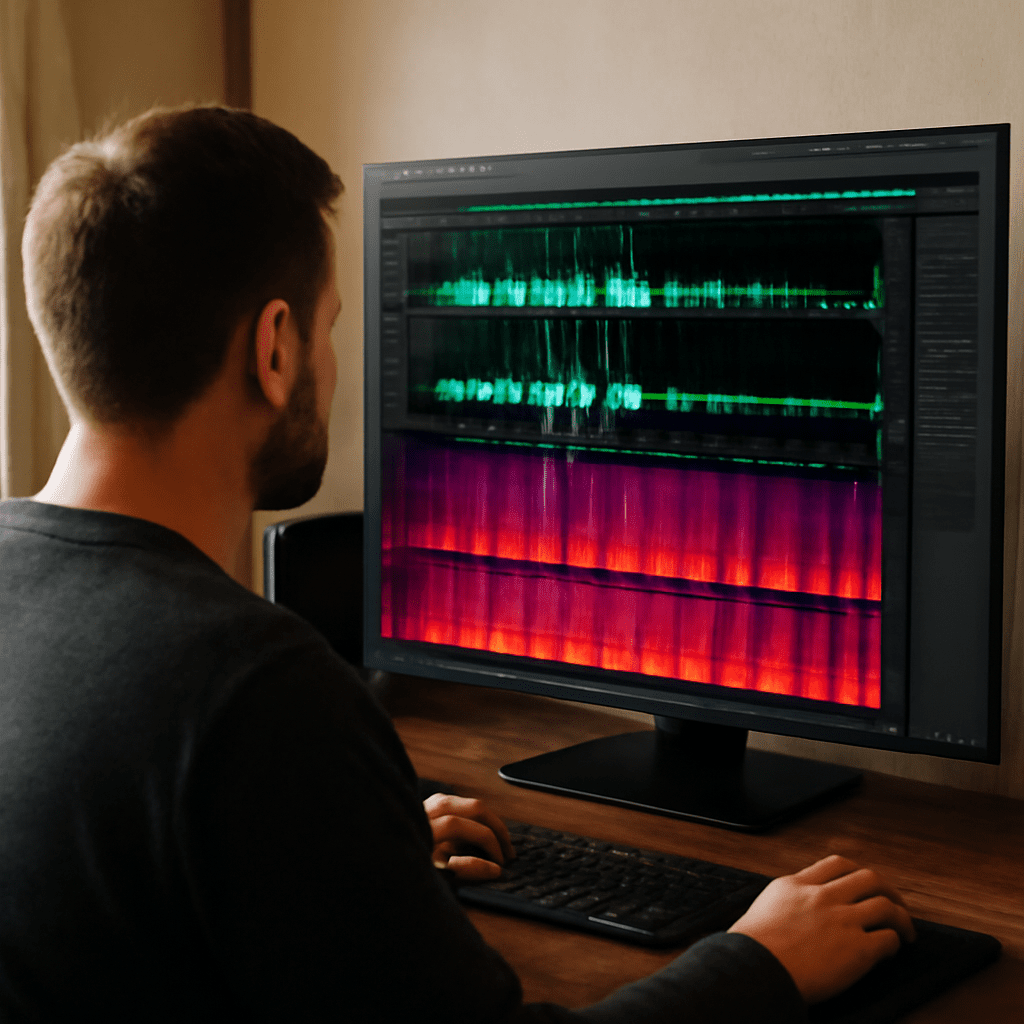
Choose an application that accepts your source format and can export the format you need. A sound file editor displays a waveform: time runs from left to right, and the height of the shape gives a visual indication of amplitude. The waveform helps locate pauses and loud sections, but listening tells you what they contain.
For a concrete example, open an MP3 in Audacity using File > Open. Play it once through headphones or speakers. Note the desired start and end, any interruptions, and sections where the voice is difficult to hear. Save a project copy as well as keeping the original file. A project retains editing information; an exported audio file is the version intended for playback or delivery.
If you prefer a browser, an online sound editor can be convenient for a short file. Check its supported formats and file-size limits first. Review how it handles uploaded files before using a private interview or unreleased material. A desktop application keeps the editing workflow local unless you choose to share the file.
Trim an MP3 in a few steps
Suppose the first five seconds contain chair noise and the useful speech starts just afterward. In Audacity, drag across the portion you want to keep, starting slightly before the first word and ending slightly after the last. Zoom in around each boundary and play it. Leave a little natural room tone so the speech does not begin or end abruptly.
Choose Edit > Remove Special > Trim Audio. For a single clip, this keeps the selected portion and hides the audio outside it. Play the new beginning and ending. If a word is clipped, undo the operation or extend the clip boundary and adjust the selection. Menu names and behavior may differ in another sound editor, so check whether its trim command keeps the selection or removes it.
To remove a mistake in the middle, select only the unwanted passage and listen to the selection in context. Delete it, then play across the join. A tight cut can create a click or make the speaker sound rushed. Adjust the boundary or use a short fade or crossfade if your editor provides one. Preserve enough of the pause for the sentence to make sense.
Make focused improvements
Begin with level. If the whole recording is quiet, increase gain or use a normalization tool to raise its peak to a chosen level. Listen to the loudest passage afterward. A flattened waveform or audible distortion may indicate clipping; lowering the level later cannot restore detail already lost in the recording.
If one sentence is much quieter than the rest, adjust that section separately or use gentle compression to reduce the difference between loud and quiet passages. Compare the processed audio with the original at a similar listening level. Too much compression can bring up breathing and background noise and make speech sound unnatural.
For a steady fan or hiss, try noise reduction on a short sample first. In Audacity, select a section containing only the unwanted noise, capture a noise profile, then select the affected audio and preview the reduction. Use a light setting and listen for metallic or watery artifacts. A changing sound, such as traffic, may not respond well to a profile of steady noise. For an isolated click, a small repair or carefully placed edit may work better.
A sound clip editor is also useful for adding a short fade at the beginning or end. Select a small region and apply a fade, then check that it does not swallow a consonant or cut off a musical tail. Make one change at a time so you can undo an adjustment that makes the recording worse.
Choose where to edit
You can use a sound editor online for a quick trim when installing software is impractical. Confirm that the page can export the file type you need and that the downloaded result plays correctly. Some tools process files in the browser; others upload them to a server, so check the specific service’s privacy information.
For repeated revisions, a desktop project is often easier to manage. Save a clearly named project and export versions with distinct names, such as interview-edit-01.mp3. A sound editer can help with a simple cut, while an audio editer with multiple tracks is more convenient when you need to align voice, music, and effects. Keep copies of the source files in a known location.
Whether you choose sound editing online or a desktop workflow, avoid repeatedly opening and exporting the same MP3. MP3 is lossy: each re-encoding can discard more detail. If you have a WAV original, edit from that source and export the MP3 only when the edit is ready. If the MP3 is your only source, keep it unchanged and export a new copy.
Export and listen to the result
In Audacity, choose File > Export Audio, select MP3 as the format, and choose a destination and a new filename. Choose the bitrate according to the delivery requirement: a higher bitrate generally produces a larger file and can preserve more detail. If the recipient requests WAV, export that format instead; converting an existing MP3 to WAV does not restore information already lost.
Open the exported file in a separate player. Listen to the first and last few seconds, every edited join, and the loudest and quietest passages. Check that both channels play as intended, that the duration is plausible, and that the filename and format match the delivery request. If something is wrong, return to the project, correct it, and export a fresh copy.
Now make a duplicate of a short recording, open it, and trim just the unwanted start. Listen across the new boundary and export a separate test file. This small pass makes the workflow familiar before you edit a longer recording.