

You’ve designed a crisp, vibrant logo or an intricate icon, only to realize you need it at a completely different size—for a web header, a poster, or an app button. If you scale the image file, it often becomes blurry and unusable. That’s where scalable vector graphics, or SVG files, come in. But even with SVG’s flexibility, you still need to resize SVG precisely for each creative project. The good news? You can resize SVG online with just a few clicks, keeping your designs sharp and adaptable across all digital and print formats.
Modern creative tools have made SVG resizing faster and more intuitive than ever. Knowing how to resize SVG online means you can stop wasting time with manual adjustments or complex desktop apps. Instead, you get pixel-perfect results in seconds, ready for any workflow—no advanced skills required. Let’s dive into why resizing SVG files is essential, the top online methods, and tips for keeping every icon, shape, or logo looking its best.
Why Resize SVG Files Matters in Creative Work
SVG files offer unmatched flexibility for designers, letting you scale visuals up or down without sacrificing sharpness. In creative software, you’ll often find yourself needing different dimensions for a single asset—think about adapting icons for websites, mobile apps, or even printed materials. If you skip resizing SVG files and depend only on one format, you risk awkward fits and inconsistent branding, especially when collaborating with teams or delivering assets to clients.
Resizing SVG online empowers you to work efficiently and consistently. Instead of maintaining multiple versions or manually editing code, you quickly generate the size you need for any scenario. This makes it easy to update a brand kit, export new social media assets, or send clean files to a developer. You maintain quality and save time, all while ensuring that your visuals look sharp at any scale.
When you’re working with SVG graphics, resizing correctly preserves curves and lines—no jagged edges or pixelation. Compared to raster images like PNG or JPG, vector formats are uniquely suited for creative projects that demand flexibility. That’s why learning how to resize SVG online is a must-have skill for any modern designer or digital artist.
By taking advantage of online resizing methods, you also streamline your workflow. Whether you’re batch resizing SVG assets or tweaking a single file for a web app, you’ll notice the difference in both speed and output quality. This keeps your creative projects moving forward, from concept to final delivery.
How to Resize SVG Online: Step-by-Step Guide
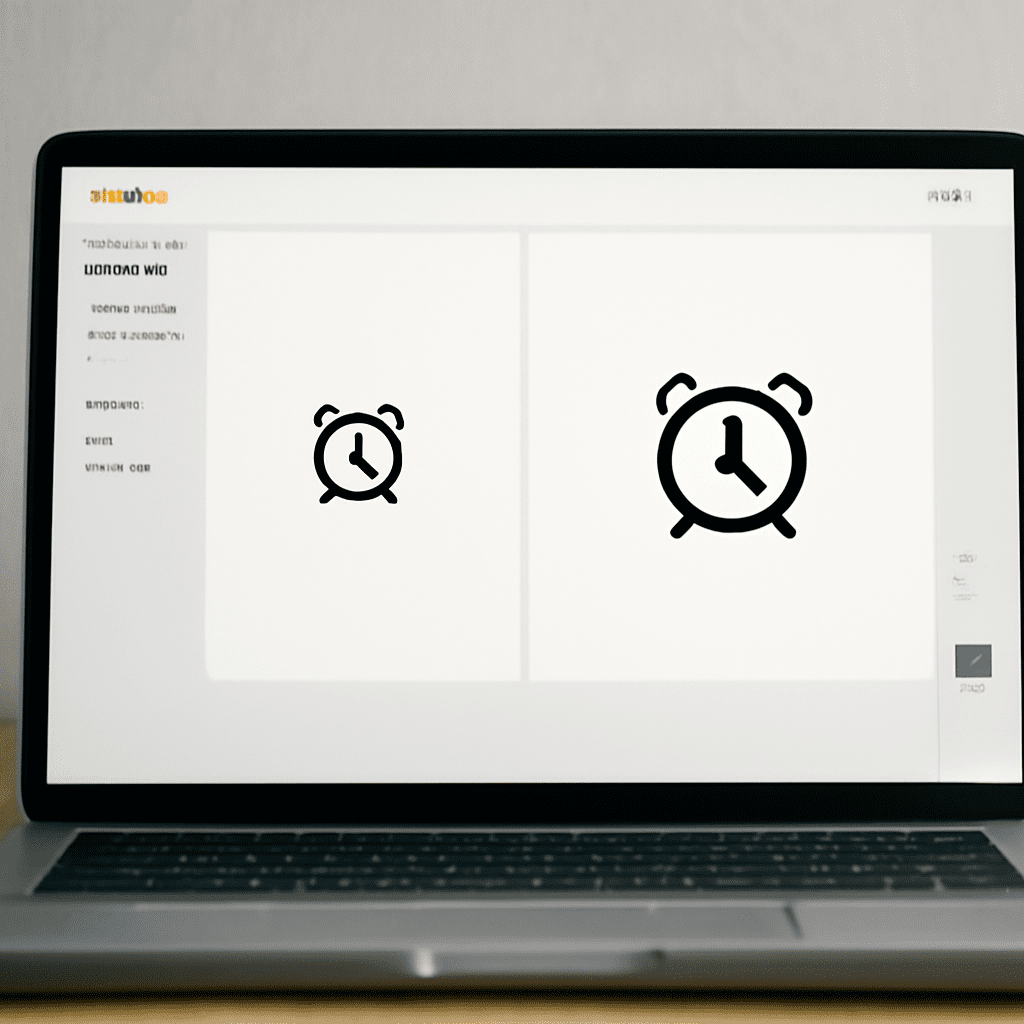
If you’re new to working with vector graphics, the process to resize SVG online is refreshingly simple. Start by locating a trusted online SVG resizer. These web-based tools typically feature intuitive interfaces—no need to download or install anything. Just upload your SVG file, set your desired width and height, and let the tool handle the math. Most platforms instantly preview the result, so you can check alignment and proportions before downloading the new version.
Here’s a practical workflow: upload your .svg design, input your new dimensions (in pixels, inches, or percentages, depending on your project’s needs), and preview or export. Some resizers offer batch resizing, letting you process multiple SVGs at once—ideal for icon sets or design libraries. Always double-check the final output for visual consistency and make sure there’s no distortion or missing elements.
You might also want to experiment with advanced options, such as custom aspect ratios or responsive resizing. These features allow for more creative control, letting you adapt a single SVG for multiple uses—say, as a website favicon and a large-scale print. In practical terms, this saves hours over manual editing and prevents costly design errors down the line.
For DIY SVG resizing, some designers edit the SVG code directly with a text editor, adjusting the width and height attributes. This method works well if you’re comfortable with XML markup, but for most creative professionals, online tools provide a faster, more visual approach. No matter which path you choose, always preview your edits before handing off files or publishing them online.
Popular Tools to Resize SVG Online
Choosing the right tool to resize SVG online can make your workflow smoother and your results more predictable. Several platforms stand out for their speed, reliability, and feature sets. SVG-edit, for example, is a browser-based app that combines editing and resizing with a straightforward drag-and-drop interface. You simply upload your SVG, adjust the canvas, and export—no registration required.
Another solid option is Vecta, which supports batch resizing and offers collaborative features for teams. This is especially useful if you’re managing multiple assets or need to quickly generate various versions for testing across devices. Vecta allows you to customize output settings, so you can match your SVG export to any project specification.
Other popular solutions include SVGOMG and Vectorizer, each designed for slightly different needs. SVGOMG excels at optimizing SVGs while resizing, which can reduce file size for web performance. Vectorizer, on the other hand, is perfect when you want to convert raster images to SVG before resizing. By exploring these tools, you’ll find a method that suits your style and creative process.
Don’t overlook the built-in export features in creative software like Figma or Adobe Illustrator. These programs let you resize SVG during export, ensuring your assets are ready for use on any platform. While online tools are great for quick jobs, desktop apps provide added control for more complex design projects.
Tips for Maintaining SVG Quality When Resizing
Keeping your SVG graphics crisp involves more than just changing numbers. Always maintain the correct aspect ratio unless your creative project calls for a specific distortion. Stretching an SVG out of proportion can ruin its aesthetics, so use “lock aspect” features in online tools to keep everything balanced.
Make sure your original SVG doesn’t have embedded raster images or unnecessary metadata. Clean SVG code ensures every resize preserves clarity. You can use optimization tools before resizing to strip out redundant elements and reduce file size for faster loading online.
If you’re exporting from creative software, check resolution-independent settings such as “responsive” or “scalable” output. These options ensure your SVG adapts gracefully to different screens, from smartphones to 4K monitors. Always test your resized SVGs at various display sizes; zoom in to check details and zoom out to spot overall balance.
Batch resizing workflows benefit from templates or reusable settings. By standardizing your resizing process, you avoid inconsistencies and maintain a professional look across your entire icon set or brand suite.
Common Issues and How to Fix Them When You Resize SVG
Even with the best tools, you might encounter problems when you resize SVG online. Sometimes, gradients or filters don’t scale as expected, leading to visual glitches. To prevent this, use well-supported SVG features and double-check how your assets render in different browsers.
Another frequent issue is missing elements after resizing. This can be caused by improper viewBox settings or unsupported CSS styles. Before finalizing your resized SVG, open the file in a vector editing app to confirm that all layers and shapes appear correctly. Adjusting the viewBox attribute manually in the SVG’s code will often resolve alignment problems.
For complex graphics with embedded fonts or external resources, paths may break or shift on resizing. Convert text to outlines before uploading your SVG to an online resizer, and keep all embedded elements self-contained. This step ensures that resizing doesn’t strip vital design details.
Regularly preview your SVGs after resizing in both web and creative tools. If colors shift or effects get lost, try simplifying the SVG and re-exporting. Taking a few minutes to troubleshoot guarantees professional results—no matter where or how you use your scalable vector graphics.