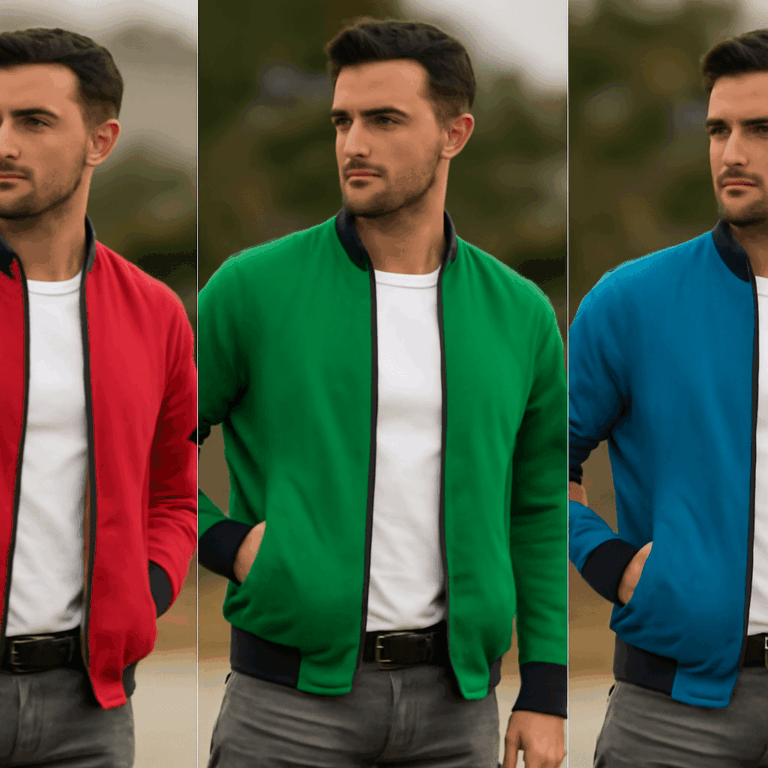



A sample image may look beautiful, but the same color treatment can make your own footage too dark or turn skin orange. Start by downloading free LUTs with a known purpose, then test a few on a representative frame. You can compare the result and adjust it before applying a look across a sequence.
A no-cost LUT is a useful starting point when you know what your footage needs. The choices below include actual downloadable files, with different licensing terms and intended inputs.
Free LUT sources to try
A LUT, or lookup table, maps input color values to new output values. Think of it as a translation table for color: it applies a fixed mapping to an image, but it cannot recognize a face or repair an incorrectly exposed shot. These sources offer files you can try in compatible applications:
- DAEDAL Cinematic Looks is a free LUT pack in
.cubeformat, designed for Rec.709 input. The page describes a CC0 1.0 license, says no credit is required, and provides a download without an account. Start here if your footage is already prepared for a standard Rec.709 display and you want to explore a stylized look. - createthat.ai’s LUT library offers individual
.cubelooks with before-and-after previews. The site says they are free for personal and commercial projects, without sign-up or credit, but asks users not to resell them or distribute them as a download pack. Choose one look for your first test rather than collecting the whole library. - slay’s GitHub collection contains five creative
.cubelooks. The repository states that they are available for personal and commercial use under CC BY 4.0, which requires appropriate attribution. Its README gives a suggested credit and links to the license. Open thelutsfolder and download the desired file or use the repository’s ZIP download.
Are these LUTs free to use in a client project? According to the linked pages, the first two permit commercial use, and slay permits it with attribution. Read the current terms before delivery, particularly if you intend to redistribute the files themselves. A LUT download and a license to use it in finished work are related but distinct things.
Match the file to the footage
Before a free LUTs download, identify your camera profile and your editing application’s color workflow. A .cube file is widely supported, but the extension alone does not specify what image the LUT expects. Look for an input label such as Rec.709, Sony S-Log3, or another named log profile. Also check whether the page specifies a color gamut as well as a gamma curve.
A technical LUT converts footage from one defined color encoding to another. For example, a camera-specific log-to-Rec.709 transform is intended to make that particular log signal suitable for a Rec.709 workflow. Use the transform that matches both the recorded profile and the intended output. Camera manufacturers often provide conversion LUTs for their own profiles; check the documentation for the exact camera and settings.
A creative LUT changes the image’s appearance, perhaps warming highlights or shifting shadows. It still expects an appropriate input. The DAEDAL pack, for example, specifies Rec.709 input. Applying a Rec.709 look directly to flat log footage may produce a result unlike its preview. Conversely, applying a log conversion to footage already converted by your editor can make the picture excessively contrasty or saturated.
Check your project settings before adding a transform. If the software already converts the clip into the intended working or display space, do not apply the same conversion again. Keep conversion and the creative look as separate steps when the application allows it. That makes it easier to diagnose which step changed the picture.
Import and apply the look
Download a file from the provider’s page. If it arrives in a ZIP archive, extract it first and find the .cube file. Save it in a clearly named folder so you can find the same version later. Check the provider’s instructions for the intended input and keep a copy of the license with your project notes.
In Adobe Premiere, put a clip on the timeline and select it. Open Window > Lumetri Color, expand Basic Correction, and choose Browse from the Input LUT menu to select the file. Adobe also documents installation folders for making custom looks available in the panel. The Input LUT is one placement in the color pipeline, so check that it receives the input the chosen LUT expects.
In DaVinci Resolve, open Project Settings and choose Color Management. Use Open LUT Folder, copy the extracted file into that folder, then return to the settings and choose Update Lists. On the Color page, apply the LUT to a node on the selected clip. Blackmagic’s colorist guide describes this import workflow. Menu names can vary by version.
For still images, Photoshop can load a compatible file through a Color Lookup adjustment layer. Whichever program you use, save the project before experimenting and keep the original footage unchanged. A downloaded color table should be easy to remove or replace as your decisions evolve.
Compare on your own frame
Choose a frame with a face, a neutral object, and both bright and dark areas if possible. Correct obvious exposure and white balance issues, then apply the LUT at the point in the pipeline specified by its creator. Toggle the effect on and off. Look at skin, white surfaces, highlight detail, and shadow texture, not just the overall mood.
If the change is too strong, lower the effect’s intensity or blend it with the ungraded image using your editor’s controls. Make small exposure and saturation adjustments as needed. Examine another shot from the same sequence: a look that suits a shaded portrait may overwhelm a sunny exterior. Scopes can help reveal clipped highlights or crushed shadows, while the image itself shows whether the result supports the story.
For a neutral interview, choose the look that preserves believable skin and detail across both shots. For a stylized montage, choose the one that supports the intended mood without losing details you want viewers to see. Your own footage and the intended use decide which result wins.