

A well-organized collection lets you find an album quickly and play its tracks in the intended order. Software for managing music can help you inspect the files and their information together. Start with a backup, then use a tool that organizes music files to review tags, folders, and possible duplicates in small batches.
The goal is a collection that remains understandable outside one application as well as inside your player. Check both the file structure and the information your player displays.
Music file organizer: Choose controls you understand
Music manager software may display tracks by artist, album, title, and track number. Some tools can edit tags in batches, suggest metadata, rename files, or move them into folders. Check which changes affect only the application’s library and which alter the files themselves. A preview or confirmation step makes large changes easier to inspect before applying them.
The best music management software for your collection supports your file formats, shows the fields you need, and makes it clear where files will go. If you use multiple artists or classical recordings, look for fields such as album artist, composer, and disc number. Check how the program treats those fields in the formats you own.
Choose a small test folder before importing the whole library. Confirm that the tool reads the tags and artwork as expected. If it offers automatic renaming or duplicate removal, leave those features off until you understand their rules.
Make a backup before changing files
Copy the original music folder to a separate drive or another backup location with enough space. Include artwork and any playlist or library files you want to preserve. A backup on a separate device is more useful if the working drive fails or files are accidentally changed.
Open several files from the backup to check that the copies play. Compare the folder count and size with the source as a basic completeness check. If you already use a backup system, confirm that it has a recent, restorable copy before proceeding.
Do not delete the backup after a successful first edit. Keep it until you have reviewed the reorganized collection and are satisfied that you can find and play the tracks. A backup is your way back if a batch operation changes more files than intended.
Review tags in manageable groups
Tags are metadata stored with or associated with an audio file. A player uses them to display and sort information. Filename and tag can disagree: 01-song.mp3 may contain the wrong title or no track number at all. Inspect both when an album appears out of order.
Begin with one album. Check the artist, album title, track titles, track numbers, and disc numbers. Use album artist consistently for a compilation if your player relies on that field to keep it together. Check how your particular player handles featured artists and multi-disc releases before applying a convention to the whole library.
A music library manager can show many tracks in a table and apply a shared album title to a selection. Select the intended files carefully before a batch edit. For fields that differ by track, such as title and track number, inspect each row. A mistaken batch edit can give every song the same title.
Online metadata suggestions can save typing, but compare them with the actual release. Similar editions may have different track orders, bonus tracks, or artwork. Apply a suggested match only after checking the track count and a few titles against the files you own.
Make folders predictable
Choose a structure you can navigate without opening the player. One common pattern is Artist / Album / Track number - Title. For a compilation, a consistent album-artist folder can keep tracks together. Multi-disc albums may need disc numbers in the filenames or separate disc folders.
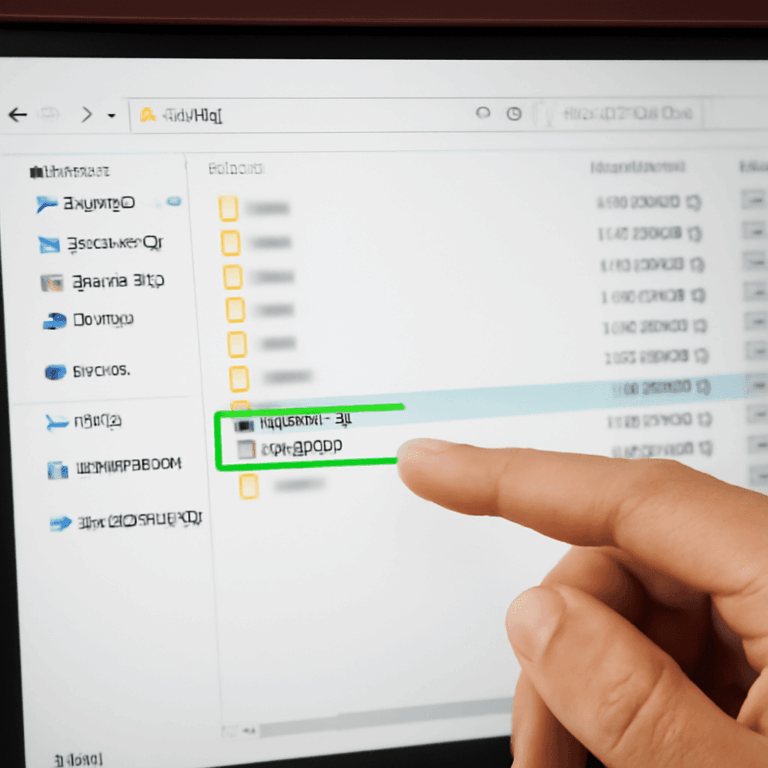
A music library organizer may be able to build this structure from tags. A music file organizer with a path preview lets you inspect the proposed names before a move. Fix the tags first, preview the proposed paths, and test on a copy of one album. Check for characters the operating system cannot use in filenames and for two tracks that would be assigned the same name. Decide how the tool handles collisions before approving a move.
A program for managing a music library may move files rather than copy them. After a test, verify the destination and confirm whether the originals remain. Existing playlists can contain paths to the old locations; update or rebuild a test playlist and make sure it plays before reorganizing more folders.
Investigate possible duplicates
A duplicate finder can flag files with matching tags, names, lengths, or audio fingerprints. A match is a reason to compare, not an instruction to delete. A live version, remaster, alternate mix, or different file format can share a title with another track while serving a different purpose.
Compare album, duration, version, format, and quality. Play a portion if the details are ambiguous. If two files are truly redundant for your purposes, move the candidate to a separate review folder first. Check the library and playlists after the move. Delete only when you are satisfied that the retained copy is the one you want and the backup remains available.
Software that organizes music files may update its database separately from the file system. Refresh or rescan as the application requires, and check that the removed candidate has not left a broken entry. Work through a small set before applying the same rule to a larger group.
Verify the result in your player
Open the reorganized collection in the player you normally use. Search for an artist, open an album, and confirm the displayed titles, artwork, disc order, and track numbers. Play the first, middle, and last tracks of a changed album. Test a playlist that previously referenced those files.
If a track is missing, inspect its new path and refresh the library or repair the playlist. If an album is split or misordered, revisit its album-artist and numbering tags. Keep the original backup while you make corrections, then repeat the tag and playback checks before working on the next batch.